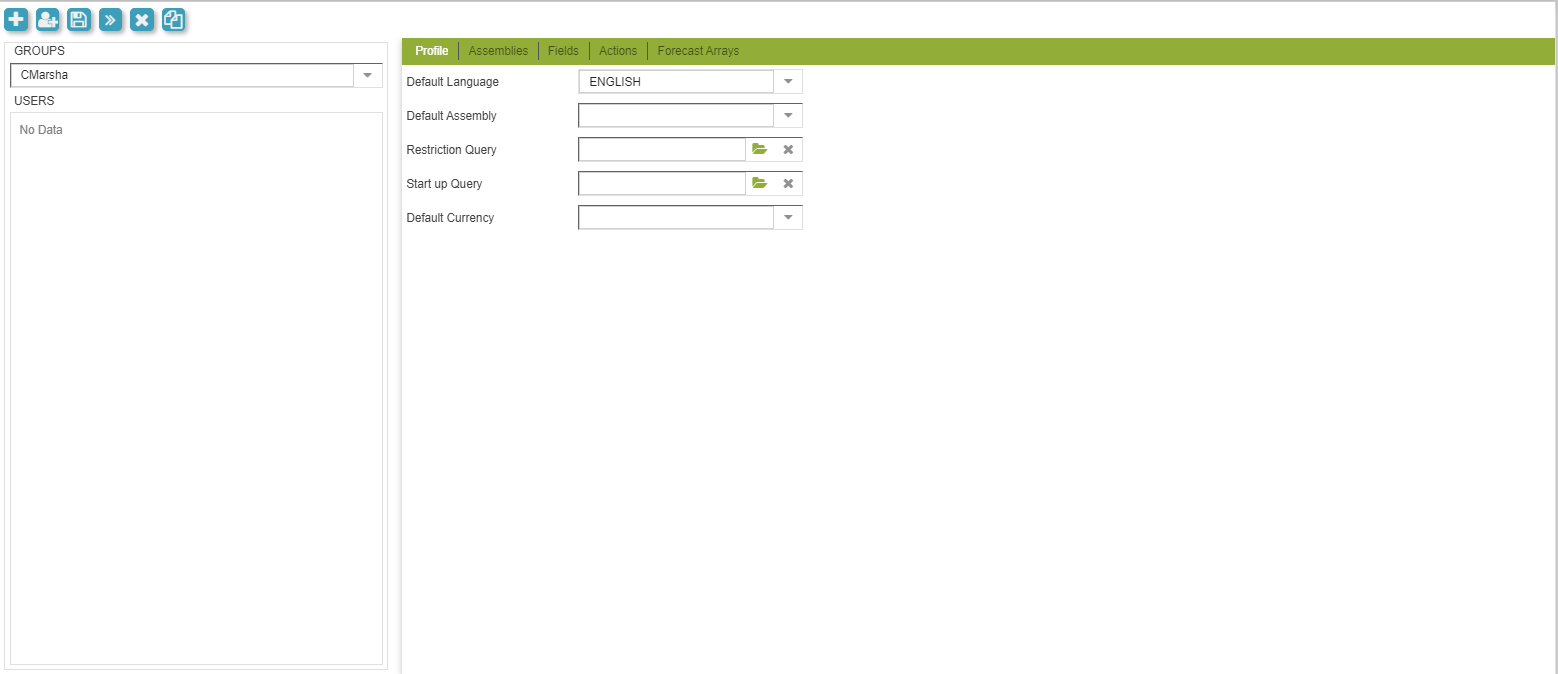
Group Security Manager Screen
- Managing Groups
- Assemblies, Fields, Actions, and Forecast Arrays Tabs
- Profile Tab
Managing Groups
To create a group, click on the “Add New Group” icon in the toolbar then enter the name for the group you want to create. The group will be created and accessible from the Group drop down menu. After that, create Group characteristics using the five tabs on top. Use the Profiles, Assemblies, Fields, Actions, and Forecast Arrays tabs to assign Groups access levels to each screen and field and certain common actions.
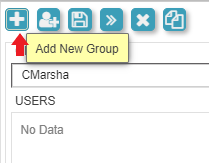
Add New Group Option
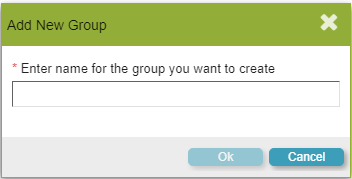
Add New Group Screen
- To delete a group, click on the “Delete Group” button in the toolbar. Note that deleting a group will also delete all users associated with this group. A popup will display confirming that the user wishes to continue with the "delete" function.
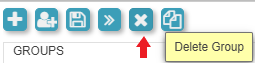
Delete Group
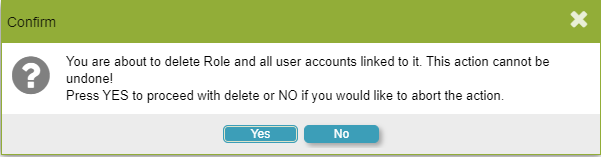
Delete Group Confirmation Pop-up
- To create a user in a specific group, click on the “Add User” icon in the toolbar. Fill in the Add User window with the User name and password for the new user. Then specify the group for the new user.
- The "Add restriction query" folder can be used to view items that meet the query criteria.
- The "Add Global Restriction query" folder can be used to add restriction queries globally
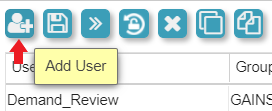
Add New User Option
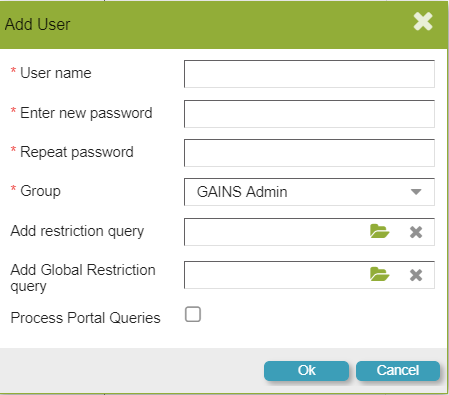
Add New User Screen
Assemblies, Fields, Actions, and Forecast Arrays Tabs
Use the Assemblies, Fields, Actions, and Forecast Arrays tabs to assign Groups access levels to each screen and field and certain common actions.
- “Update” access allows the user to view and update screens and fields.
- "Read only” access allows the user to view screens and fields; however, s/he cannot make any changes.
- “Not accessible” means the user cannot see the field or the screen.
- In the Fields tab, another permission setting is “Update Doc Required”. When that setting is selected, an alias field in an Inspector may only be updated by right-clicking on it and selecting Adjust. The new field value and an optional document may be entered in the pop-up window. The username and timestamp of the adjustment are automatically logged for tracking and reporting purposes.
Right-click on any row or select the drop-down list to choose the permission. Also, right click to “Copy Settings From…” any other Group.
Profile Tab
In this tab, Restriction Queries and Startup Queries can be selected. These limit the user to viewing items that meet the query criteria. The following options are available in this tab:
- Default Language: The language GAINS will be displayed in.
- Default Assembly: The assembly the user will default to upon launch of GAINS
- Restriction Query: this query filters the SKULs users will see when using GAINS
- Global Restriction Query: this is automatically loaded when logging into GAINS but can be removed and reapplied in the Query Menu. Additional queries can be attached manually when this is applied.
- Start up Query: Is attached as a typical user defined query on startup and can be removed and reattached through the query menu at any time. Attaching a different query replaces this query until manual reattachment or restarting GAINS.
- Default Currency: The currency used throughout GAINS.
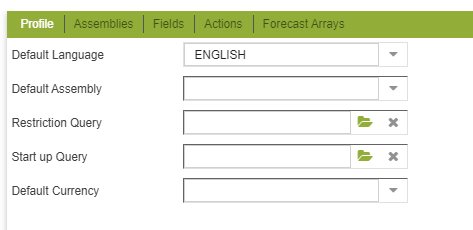
Profile Tab