The User Security Manager is similar in design and function to the Group Security Manager except the functionality is centered solely on individual users, not user groups. This screen allows the GAINS Administrator to create a new user name and assign a password, and include the new username in any existing group. Additionally, the group designation of an existing username can be updated.
Updates to a specific individual user’s profile always override the default profile of the general Group to which that user belongs. For example, if the Planner Group has No Access permission set for the Bill of Material Maintenance screen but a user in the Planner Group has Update permission, then the user will have Update permission.
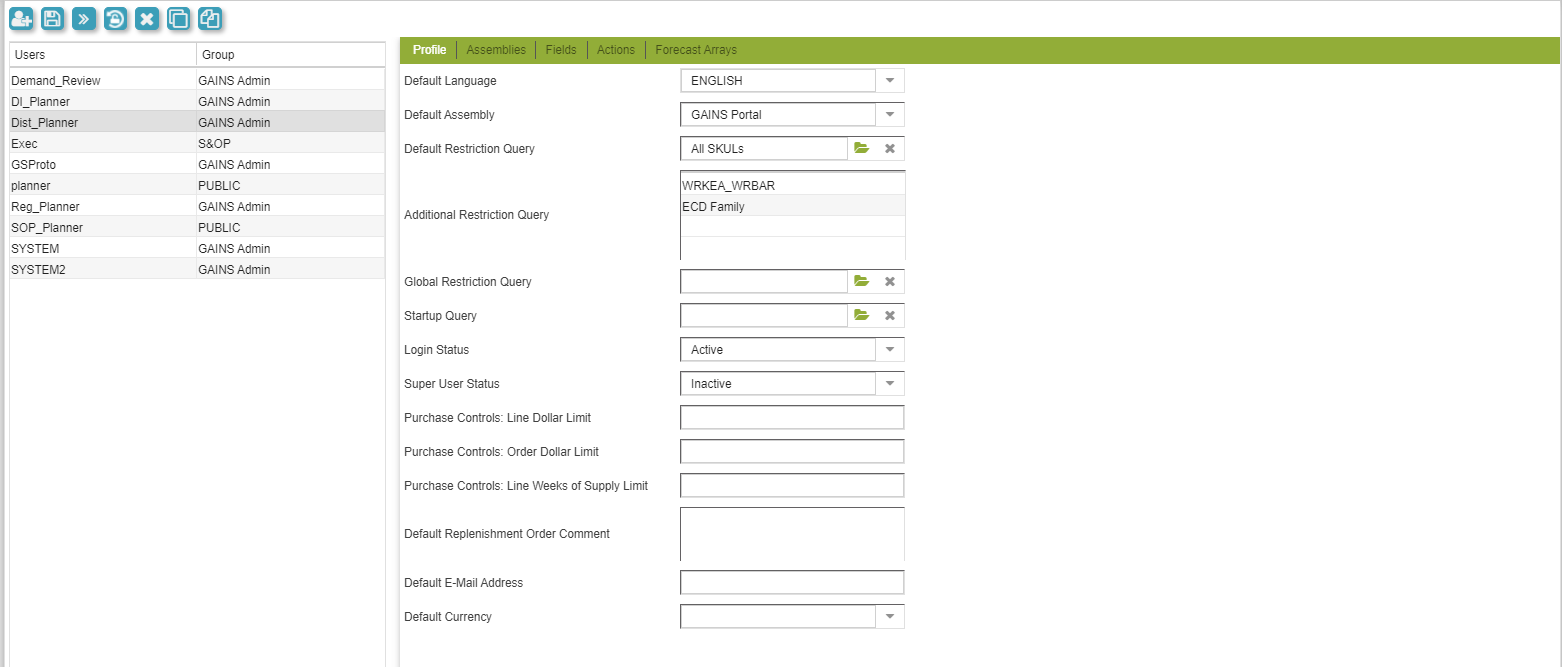
User Security Manager Screen
- Managing Users
- User Security Manager Toolbar Functions
- Mass Copying GAINS Portal Links
- Clone Configs
- Clone Permissions
Managing Users
- To create a user, click on the “Add User” icon in the toolbar. Enter the name for the user you want to create and choose a group in which this new user will belong to (settings, permissions etc.). Create Group characteristics using the four tabs on top. Use the Assemblies, Fields, Actions, and Forecast Arrays tabs to assign Groups access levels to each screen and field and certain common actions.
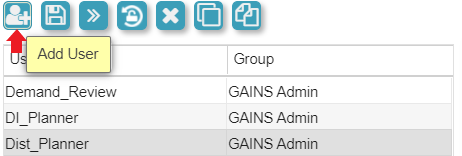
Add User
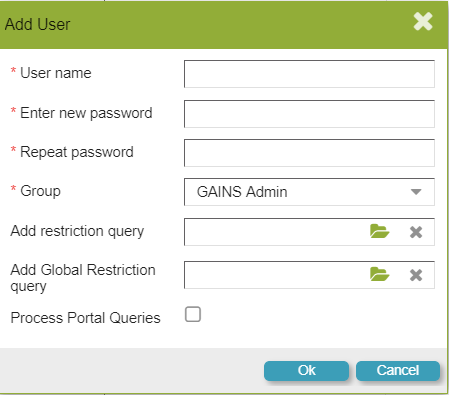
Add User Window
- Default Restriction Query: this is automatically loaded when logging into GAINS but can be removed and reapplied in the Query Menu. Additional queries can be attached manually when this is applied.
- Additional Restriction Query: This is where users may enter any additional queries when logging into GAINS. This may be used once Default Restriction Queries are applied.
- Global Restriction Query: this is automatically loaded when logging into GAINS but cannot be removed and reapplied in the Query Menu.
- To change a user’s group, click on the drop down menu and choose the appropriate group. This feature is useful to give a user specific security settings belonging to a group.
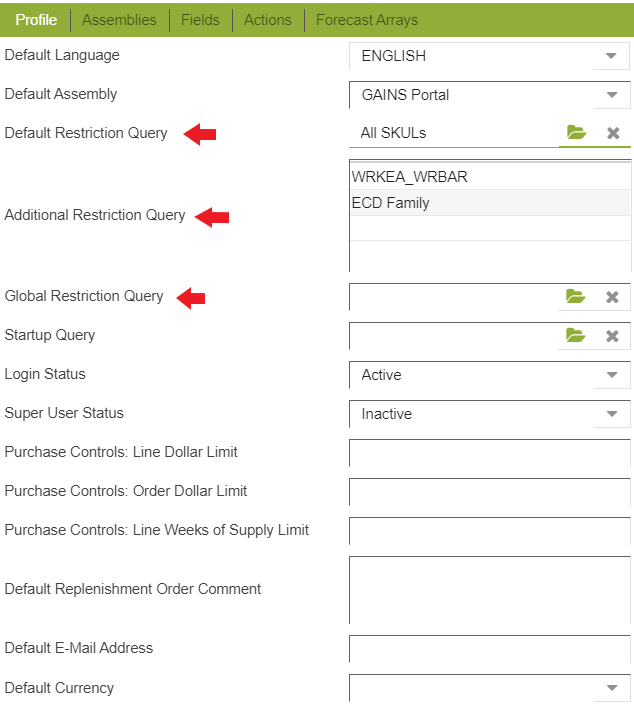
Set Restriction Queries
User Security Manager Toolbar Functions
The User Security Manager provides the ability to easily reset the password of an existing user with the “Reset Password” icon in the toolbar. Simply enter the new password twice and confirm the old password.
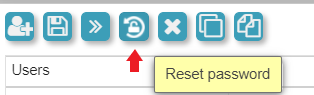
Reset Password
Mass Copying GAINS Portal Links
Choose the user you want portal links copied to on the left side of the screen. This option can be accessed in the top left of the User Security Manager screen. Once selected, a pop-up window will open and allow users to select the user/group source for portal queries.
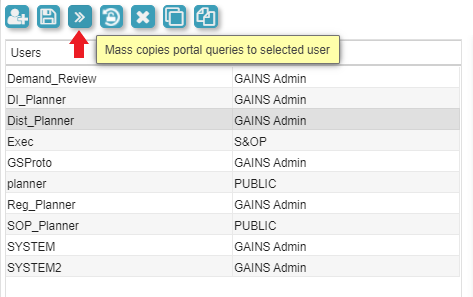
Mass Copies Portal Queries to Selected User Button
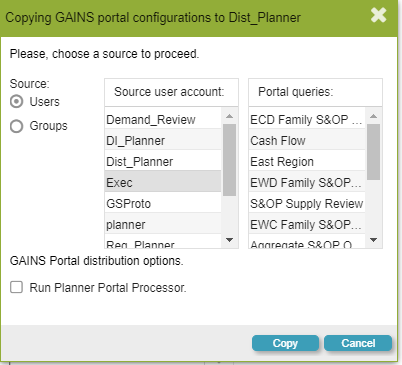
Mass Copies Portal Queries Pop-up Window
Clone Configs
User screen settings may be copied or “cloned” from one user login to another. The user configuration settings that may be ported are security settings, screen inspector configurations, and user queries and portal configurations. The following describes the procedure for cloning screen settings.
- Choose the user you want screen configurations cloned from by clicking on the user name. In this example, the user login for “SYSTEM” will clone configurations from another user login.
- In the top left of the User Security Manager screen, select the "Clone Configs From Another User" button to open the pop-up window.
- Choose the user from which you want the settings cloned and then choose the category from which you wish to copy the settings.
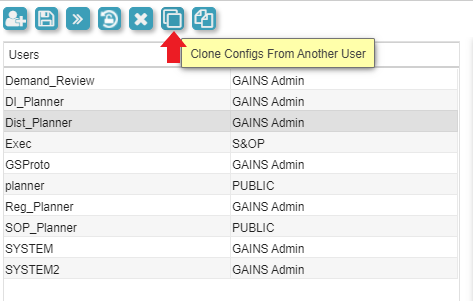
Accessing Clone Configs From Another User
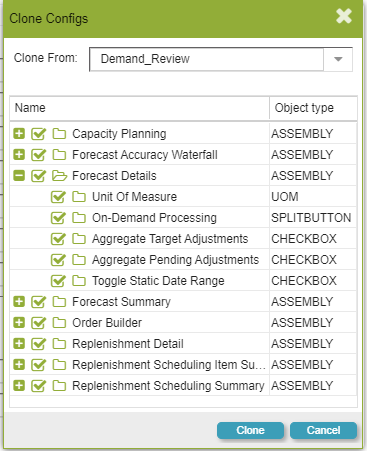
Clone Configs Screen
Clone Permissions
User profiles may be imported/exported from one GAINS installation to another. The purpose of this feature is to enable profiles established in a GAINS Test environment to be imported to a GAINS Production environment. It is also used when performing major GAINS version upgrades.
The user configuration settings that may be ported are user names, passwords, security settings, inspector configurations, and user queries and portal configurations.
To access Clone Permissions, click on "Clone Permissions to Another User or Group" in the top left of the screen. You may select Clone Permission from the selected user to a target from to the selected user from a target.
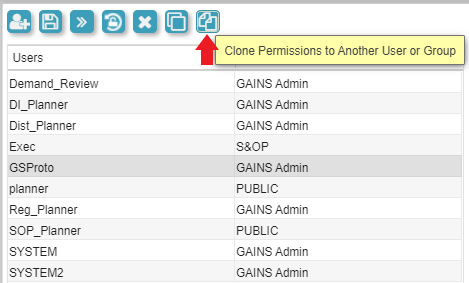
Accessing Clone Permissions to Another User or Group
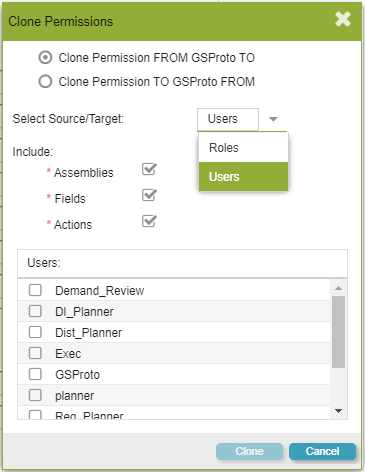
Clone Permissions Screen